Customizable Locker Management Dashboard for Admin Teams
Explore how a customizable locker management dashboard streamlines workplace storage, tracks parcel activity, and simplifies multi-location admin tasks.

A locker system is only as manageable as the information behind it. A customizable locker management dashboard brings assignments, availability, access permissions, and usage data together, helping administrators see what needs attention and act. Teams can filter reports by division, location, and date range to focus on relevant activity.
Managing lockers across a property involves more than assigning units. Administrators also need to monitor occupancy, review parcel activity, and track locker status without sorting through disconnected records. A well-organized dashboard gives teams a practical view of how lockers are being used and what may need attention.
This guide explains how locker management software supports day-to-day administration, from allocation and reassignment to usage monitoring. It covers useful dashboard views and reports, plus what to consider when choosing a system, including whether its features match your locker operations and the information your team needs.
Key Takeaways
- Match locker types and access rules to how people will use each locker, from parcel pickup to workplace storage.
- Use assignment and status information to spot availability changes and manage reassignments with less manual effort.
- Choose dashboard views that help admins focus on relevant locker activity across locations and teams.
- Filter reports by location, division, and date range to make usage patterns easier to interpret.
- Assess whether the software and locker setup support the access and pickup experience your operation needs.
What is locker management software?
Locker management software connects digital locks with an administrative platform for assigning lockers, managing access, and reviewing usage. A customizable locker management dashboard can bring these controls together while adapting views and rules to different locker uses.
Locker types define how units are used and which service plans apply. A permanent employee locker, an overnight locker, and a parcel locker serve different purposes, so each can have distinct assignment and access rules. Other configurations can support team use, asset exchange, or equipment storage for IT items and uniforms. These distinctions help administrators apply the right rules to each group rather than treating every locker as interchangeable.
Rules can specify who may use a locker, what it supports, and which service plan applies. For example, a parcel locker can be assigned for package delivery, while an asset locker can support controlled exchanges of work equipment. Locker type also determines which service plans can be used with lockers created under that type. User restrictions should reflect the purpose of each type, such as limiting an equipment locker to an authorized team.
Set up the system in a clear sequence: define products and intervals, service plans, locker areas, locker types, lockers, and customer assignments. Areas can represent buildings or operational zones, while locker types define the rules within each area. Prefixes can help distinguish locker numbers across locations and make units easier to find in the dashboard.
Dashboard Views, Roles, and Permissions
Shape dashboard views around each role’s needs, such as assignments, parcel activity, or current utilization. Check whether the platform separates viewing information from actions such as assigning or editing lockers. Staff need Locker Management authorization on their role to create, edit, or assign lockers and manage locker rooms. Role-based permissions keep administrative controls aligned with job responsibilities.
Security and Privacy Risks
A locker dashboard may contain assignment details, access records, and usage information, so broad permissions can expose more data than a role needs. The Internal Revenue Service advises granting access to sensitive data only on a need-to-know basis. Review who can view records, change assignments, or manage access, and use activity logs to trace changes to locker settings.
Hardware and Software Requirements
A locker management dashboard connects smart locker hardware, including electronic locks, with administrative controls. Access methods vary by system. ReadyLockers lockers use a touchscreen kiosk with a PIN or QR code, and recipients can also use the optional free mobile app. Administrators should choose a system whose hardware and access options suit the intended use.
Locker allocation, reassignment, and usage monitoring
Allocation connects each locker to a user or operational purpose. A central dashboard helps administrators review assignments, status changes, and usage as needs shift.
Locker Allocation and Reassignment
Start by matching a locker to its intended use, location, and service plan. For example, assign a parcel locker for package handling and an equipment locker for controlled asset exchanges. The assignment record should identify the locker and its area, so admins can distinguish similar units across locations. Prefixes can help prevent duplicate locker numbers in different areas.
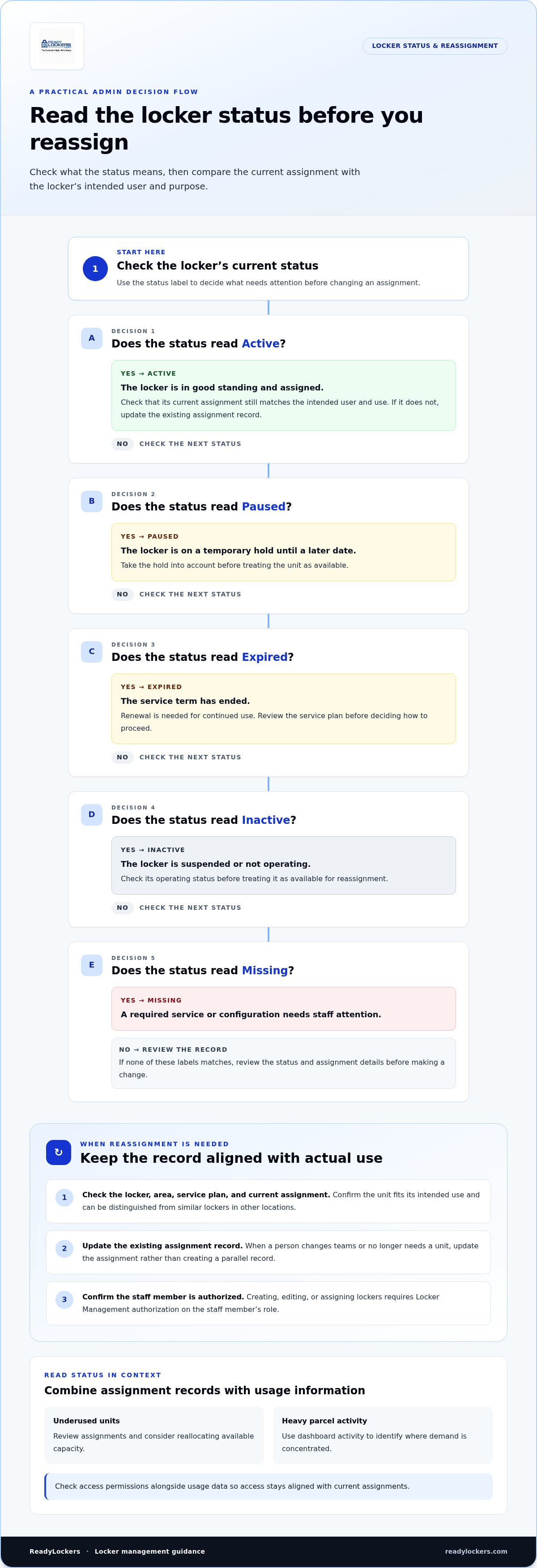
When a person changes teams or no longer needs a unit, update the assignment rather than creating a parallel record. Check the locker’s status, service plan, and current assignment before moving it to another user. Locker statuses update automatically when service plans, expiration dates, or assignments change. These updates help teams keep allocation records aligned with actual use.
Staff permissions matter during reassignment. A team member needs Locker Management authorization on their role to create, edit, or assign lockers. This keeps reassignment actions with staff responsible for maintaining accurate records.
Real-Time Status and Availability
A dashboard can show locker utilization and availability in real time. Use status information to identify what action a unit needs rather than assuming every unassigned locker is ready to use. Active means the locker is in good standing and assigned. Inactive means it is suspended or not operating.
Other statuses clarify operational conditions. Paused indicates a temporary hold until a later date, while Expired means the service term has ended and renewal is needed for continued use. Missing flags a required service or configuration that needs staff attention. Review these labels before assigning a locker to avoid a mismatch between its status and intended use.
Locker Usage Monitoring
Usage information helps administrators compare assignments with actual occupancy. If a location has underused units, teams can review assignments and consider reallocating available capacity. If parcel lockers see heavy use, the dashboard can help identify where demand is concentrated. These patterns inform decisions about assignments and locker capacity.
Use status changes and assignment records together to investigate exceptions. For example, a locker marked Active but no longer associated with its intended user may need a record update. Review access permissions alongside usage data, since security depends on keeping access aligned with current assignments. Teams evaluating smart package locker operations can use these monitoring needs to shape how they manage delivery access and availability.
Admin dashboards and locker management software
Admin dashboards turn locker activity into information teams can use to manage operations. A customizable locker management dashboard should make relevant package activity, location filters, and reporting periods easy to select.
Reports can be filtered by enterprise division and locker location. Date controls can include preset periods and a custom range, helping administrators focus on a specific operating window. The Division/Region filter represents the entire enterprise by default, including all divisions and locker locations. Keep that scope in mind when interpreting organization-wide figures.
Package activity views can include Total, Received, Placed into Locker, Attempted, Delivered, and Not Delivered. These categories help administrators distinguish completed deliveries from activity that may need follow-up. After selecting report options, refresh the dashboard to view analysis for the chosen period. For example, selecting Delivered displays a graph of packages delivered during that period.
Customizable Dashboards and Reports
Assess whether the dashboard lets administrators combine the filters and activity views their roles require. A facilities team may focus on location and occupancy, while a mailroom administrator may need Delivered and Not Delivered activity. Select the report period, apply the relevant division or location filter, then refresh to view the analysis.
Reports are more useful when teams interpret categories consistently. Received describes incoming package activity, while Placed into Locker focuses on packages put into a locker. Attempted, Delivered, and Not Delivered distinguish outcomes in the delivery process. Clear categories give teams a shared basis for reviewing operations and identifying activity that needs attention.
Cloud-Based and On-Premises Dashboards
Cloud-based dashboards make remote access and centralized reporting possible, while on-premises components can keep critical locker commands local. In a hybrid electronic locker system, on-premises lock communication can provide command latency under 50 milliseconds. Cloud-relayed remote unlock typically takes 400 to 1,200 milliseconds, depending on network conditions.
Compare deployment by the tasks that need local response and the reports teams need across locations. A hybrid design can combine local command handling with cloud-relayed remote access, but network conditions affect the latter. Dashboards can also connect with access control and identity platforms, including a company active directory, so staff may use one credential and provisioning can occur automatically. HR or facilities integrations can record locker use, helping administrators connect operational records with established workplace systems. Review which systems need to exchange assignment, credential, or usage information before choosing an integration approach.
Centralized locker management and real-time availability
A central locker system connects electronic locks to an administrative dashboard. Teams can use it to review availability, manage access, and coordinate activity across locations.
Central management replaces separate manual records with a shared operational view. For example, a facilities administrator can review lockers across buildings without opening separate spreadsheets. The dashboard can show current or recent utilization, while assignment records help explain who uses each unit. This gives teams one place to investigate occupancy changes and decide which units are ready for reassignment.
Real-time monitoring helps administrators respond to changes as they occur. If a locker becomes unavailable or its assignment changes, updated status information can guide the next action. A parcel team can review available units before coordinating incoming deliveries. Teams can also compare utilization across areas to identify concentrated demand or underused capacity.
Centralized records support clearer handoffs between teams. Facilities staff can review assignment and access history when resolving a locker issue, while mailroom staff can use package activity to identify delivery exceptions. Smart locker systems can keep a log of actions, helping administrators trace changes instead of relying on memory. This is especially useful when several teams manage the same operation.
- Review availability: Compare current utilization across locker areas before assigning a unit.
- Trace changes: Use activity records to understand assignment or access updates.
- Coordinate teams: Give facilities and mailroom staff a shared view of relevant locker activity.
- Respond to access changes: Revoke access when a card or phone is lost or stolen.
Access control is part of centralized management, not a separate recordkeeping task. If an employee loses a card or phone, smart locker systems can revoke that credential’s access instantly. Administrators can also align permissions with their access policies and review recorded activity. These controls help teams manage the connection between a person, an authorized credential, and the lockers they may use.
Integrations can extend the central view to existing workplace systems. Locker technology can connect with HR or facilities systems and record locker use, helping teams relate operational activity to their established processes. For a parcel operation, central monitoring can also support smoother mailroom workflows and reduce congestion by making delivery storage easier to coordinate. The useful measure is whether the shared view helps staff take a specific next step, such as locating an available unit, investigating an access issue, or balancing usage between areas.
Digital locker management can automate locker allocation, generate audit trails, and provide real-time updates. A strong smart locker solution can reduce the administrative time spent managing lockers by 80%.
Which locker management systems offer customizable dashboards and reports?
Look for locker management software that lets administrators filter reports by enterprise division, locker location, and date range. These controls make the same dashboard useful to a mailroom team reviewing deliveries and a facilities team comparing activity across buildings. A customizable locker management dashboard should help each team focus on relevant data without losing the wider operational view.
Start by checking which filters and report periods are available. Dashboards may offer preset periods and a Custom option for defining a range. Division and location filters let administrators narrow enterprise-wide activity to a particular area. For instance, they can compare package activity at one property with activity across the organization, then select dates that suit the review.
Next, assess whether the dashboard separates package events into useful categories. Available views can include Total, Received, Placed into Locker, Attempted, Delivered, and Not Delivered. Each category answers a different operational question. A mailroom team investigating a delivery issue may focus on Attempted and Not Delivered, while a delivery summary may use Delivered. Selecting Delivered displays a graph of packages delivered during the selected period.
Consider the workflow for producing a report, not just the list of available filters. A typical process is straightforward:
- Select the relevant division or locker location.
- Choose a preset period or define a custom date range.
- Pick the package activity view, such as Received or Delivered.
- Refresh the dashboard to display analysis for that period.
The default Division/Region filter represents the entire enterprise, including all divisions and locker locations. This broad scope can help teams understand organization-wide activity before narrowing a report. If a report changes after filters are adjusted, review the selected location and dates first. The selected options determine which activity appears after refreshing the view.
For a practical evaluation, match a real admin task to the dashboard. A facilities team might need to isolate a location, while a mailroom lead may need to compare delivery outcomes for a chosen period. Check whether the system presents those views clearly and whether administrators can repeat the reporting steps consistently. Choose a dashboard whose filters and categories support decisions your team actually makes.
If delivery reporting is central to your operation, explore locker management software built around package workflows and admin visibility.
Review how reporting fits alongside security and access needs. Smart locker systems can support parcel operations, workplace storage, and asset management. ReadyLockers connects electronically locked compartments to cloud software, with a touchscreen kiosk for PIN or QR code access. Its dashboard provides real-time visibility, an audit trail, and usage reports.
ISO 27001 is an example of a recognized security certification for smart locker systems. Organizations evaluating an electronic locker management system are advised to review penetration testing results dated within the past 12 months. Hybrid deployment architectures for electronic locker management systems have gained significant traction since 2024.
ReadyLockers: Smart Package Lockers
ReadyLockers is a natural next step for property teams managing package deliveries and pickup. Its Smart Package Lockers work with Locker Management Software, a Contactless Pickup System, and a Courier Access Interface to support the delivery-to-collection process. Couriers can place packages in secure lockers, and recipients receive SMS or QR code notifications. Pickups are contactless and available 24/7.
Consider this setup when your operation needs secure parcel storage and a structured way to manage locker activity. It can help teams coordinate package access without providing courier or delivery services. Contact ReadyLockers to discuss how its smart locker system could fit your package management needs.
Turn Dashboard Priorities Into an Operational Plan
Use your next planning cycle to define what administrators need to decide from locker data. Identify dashboard users, the actions they need to take, and the reports that support those decisions. A customizable locker management dashboard is most useful when its views reflect real responsibilities, not every available data point. That focus gives your team a practical basis for refining locker workflows as operations change.
ReadyLockers offers Smart Package Lockers, Locker Management Software, and a Contactless Pickup System. These connected products support secure parcel storage and pickup, with automated notifications and a central management dashboard. Consider how your operational goals, user experience, and reporting needs fit together when planning a locker system.
Contact ReadyLockers to discuss your locker management needs and take a clear next step toward a more organized package operation.
Frequently Asked Questions
How do organisations streamline operations with locker technology?
Locker technology can streamline operations by automating routine handoffs and recording activity in a shared system. For example, a workplace can use lockers for equipment exchanges, giving staff a consistent way to collect or return assigned items. Parcel teams can separate delivery handling from reception tasks. Set clear rules for each workflow, then use recorded activity to identify bottlenecks and refine the process.
What features should a customizable locker management dashboard include?
A useful dashboard combines clear filters, role-appropriate access, operational reports, and activity history. It should help administrators focus on their team’s decisions rather than crowding every view with unrelated data. A property administrator may prioritize site-level activity, while a mailroom lead needs delivery outcomes. Check that labels and report categories are easy for intended users to understand.
What locker usage, occupancy, and access metrics can dashboards track?
Dashboards can show utilization, occupancy, assignment changes, locker status, and recorded access activity. Package operations may also track totals received, placed into lockers, attempted, delivered, or not delivered. Read these measures together: rising occupancy alongside frequent delivery attempts may point to a workflow that needs review. Status categories such as Missing or Expired can also help staff distinguish a configuration issue from a locker ready for assignment.
How do you set up and customize a locker management dashboard?
Start by defining the decisions the dashboard should support, such as locating available capacity or reviewing delivery exceptions. Organize locations and locker types so report filters match how teams describe their work. Assign permissions according to staff responsibilities, then configure relevant views and date ranges. Before wider use, walk through a realistic task with each role, such as finding a locker record or reviewing an exception, and adjust confusing labels or views.

Frequently Asked Questions
How do organisations streamline operations with locker technology?+
Locker technology can streamline operations by automating routine handoffs and recording activity in a shared system. For example, a workplace can use lockers for equipment exchanges, giving staff a consistent way to collect or return assigned items. Parcel teams can separate delivery handling from reception tasks. Set clear rules for each workflow, then use recorded activity to identify bottlenecks and refine the process.
What features should a customizable locker management dashboard include?+
A useful dashboard combines clear filters, role-appropriate access, operational reports, and activity history. It should help administrators focus on their team’s decisions rather than crowding every view with unrelated data. A property administrator may prioritize site-level activity, while a mailroom lead needs delivery outcomes. Check that labels and report categories are easy for intended users to understand.
What locker usage, occupancy, and access metrics can dashboards track?+
Dashboards can show utilization, occupancy, assignment changes, locker status, and recorded access activity. Package operations may also track totals received, placed into lockers, attempted, delivered, or not delivered. Read these measures together: rising occupancy alongside frequent delivery attempts may point to a workflow that needs review. Status categories such as Missing or Expired can also help staff distinguish a configuration issue from a locker ready for assignment.
How do you set up and customize a locker management dashboard?+
Start by defining the decisions the dashboard should support, such as locating available capacity or reviewing delivery exceptions. Organize locations and locker types so report filters match how teams describe their work. Assign permissions according to staff responsibilities, then configure relevant views and date ranges. Before wider use, walk through a realistic task with each role, such as finding a locker record or reviewing an exception, and adjust confusing labels or views.